ARCHIVED: What should I do if my BlackBerry cannot send or receive email?
If your BlackBerry cannot send or receive email, follow the steps below in the order given to determine the problem.
Check the signal strength
To make sure that you are in a place with a strong enough signal for BlackBerry communication, click the icon, and then click . For some models, the path is , then , and then .
In the "Signal" field, verify that the value is above -100 Bm. Note the "-"; this is a negative number. If the signal is weaker than -100 Bm (the figure you see is smaller, e.g., -110 Bm), the signal strength in your area is too weak for normal functions. If your signal is stronger than -100 Bm (with a larger number, e.g., -90 Bm), continue troubleshooting.
Verify that you are in a coverage area where email transmission is supported
Below, you will find information about network coverage that supports email for AT&T and Verizon; for other carriers, contact your provider to determine what to look for. Regardless of what carrier you use, if your network status indicates email is not supported in your area, you must move to a location where email is supported. If your network status indicates email support, but you still cannot send or receive email, continue troubleshooting.
For AT&T
The network status indicator for AT&T should be "EDGE" or "3G".
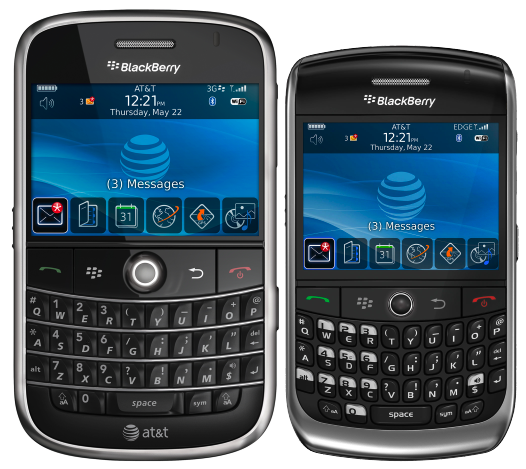
The Bold on the left shows a 3G signal indicator in the upper right corner of its screen; the Curve 8900 on the right shows an "EDGE". Here is a closeup of the screen for a Bold on a 3G network:
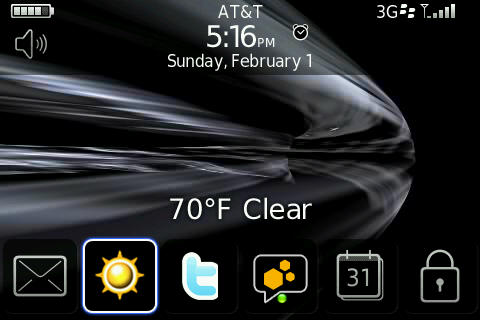
Note the uppercase letters on both. If the "G" or "EDGE" is not uppercase, this indicates that the devices are in range of an area with limited coverage. Phone calls and texting will work, but data like web browsing and BES mail delivery will most likely not.
Note: The BlackBerry Enterprise Server (BES) service will be retired by January 1, 2015; see ARCHIVED: About the retired BES (BlackBerry Enterprise Server). As of January 1, 2013, no new BES accounts are being created. UITS recommends you replace your BlackBerry with a device that is compatible with ActiveSync.
For more, including a breakdown on what an AT&T customer can and cannot do depending on the indicated signal, see AT&T's Check the Wireless Network Availability for the RIM BlackBerry Bold 9000 using Handheld Software Version 4.6.
The 3G network is faster; Indianapolis and Bloomington users should see that level of service.
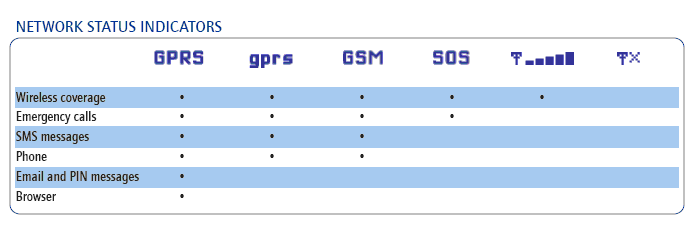
Older models that do not support EDGE or 3G will most likely have a "GPRS" indicator; "GPRS" should be capitalized. Following is a table of network status indicators for those models:
Skip to next troubleshooting step
For Verizon
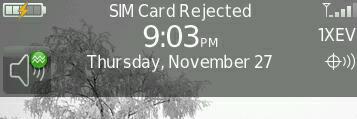
To send or receive email, the network status indicator for Verizon should be "1XEV", "EDGE", "1X", "GPRS", or "3G" with a BlackBerry symbol following. ("3G" by itself will allow you to send and receive SMS text messages, but not email.) The letters should be upper case; in some cases, lower-case versions of the same letters indicate more limited options, as indicated in the table below:
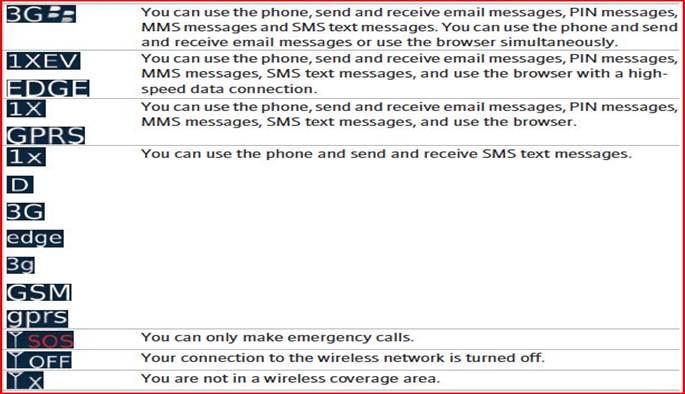
See the following image for an example of how the status indicator may appear on your screen:
Check the date and time
On most models, click the icon, and then click .
If the date and time are incorrect, fix them, and then test to see if you can send or receive email. If the date and time are correct, or if you have problems after fixing them, continue troubleshooting.
Restart
Restart your device. Once it has restarted, test to see whether you can now send and receive email. If you cannot, continue troubleshooting.
Check network settings
To check the network settings on most models:
- Click the icon, and then click or .
- In the "Radio" field, verify that the value is set to .
- In the "Roaming" field, verify that the correct country is displayed.
- Verify that the "Status" is , and then click the trackwheel. A menu will appear.
- Click and verify that the registration request is sent.
If you are unable to register the handheld or connect to the network, or do not have the correct options displayed in the "Roaming" or "Status" fields, contact your service provider. If these settings are all correct, and you are able to register your BlackBerry, continue troubleshooting.
Disconnect from the BlackBerry network
Remove the device battery for about five minutes to ensure a complete disconnect from the BlackBerry network. This causes a hard reset, forcing the network to register the device as a new device on the network. This is a common fix for coverage areas in which you normally have a connection and can send and receive email, but are now having trouble (see the charts above to determine coverage areas).
Check to see if redirection is enabled
From the Desktop Manager Software
Open Desktop Manager and double-click . Make sure is checked.
From the BlackBerry handheld
- Open the messages screen and select .
- Choose .
- On the Email Settings screen, choose .
- On the Folder Redirection page, select , and choose .
You should see a list of folders that includes
Deleted Items,Inbox,Junk E-mail, andSent Items. For mail messages to be received, theInboxfolder must have a checkmark next to it.Sent Itemsis checked by default and will not affect mail delivery.For more, see ARCHIVED: With a BlackBerry, how do I wirelessly reconcile the folders from my mailbox?
If your device is still not able to send or receive email, contact the Support Center or your BlackBerry provider.
This is document aona in the Knowledge Base.
Last modified on 2021-09-07 17:13:01.